
1. What Does AI Presentation Creation Mean?
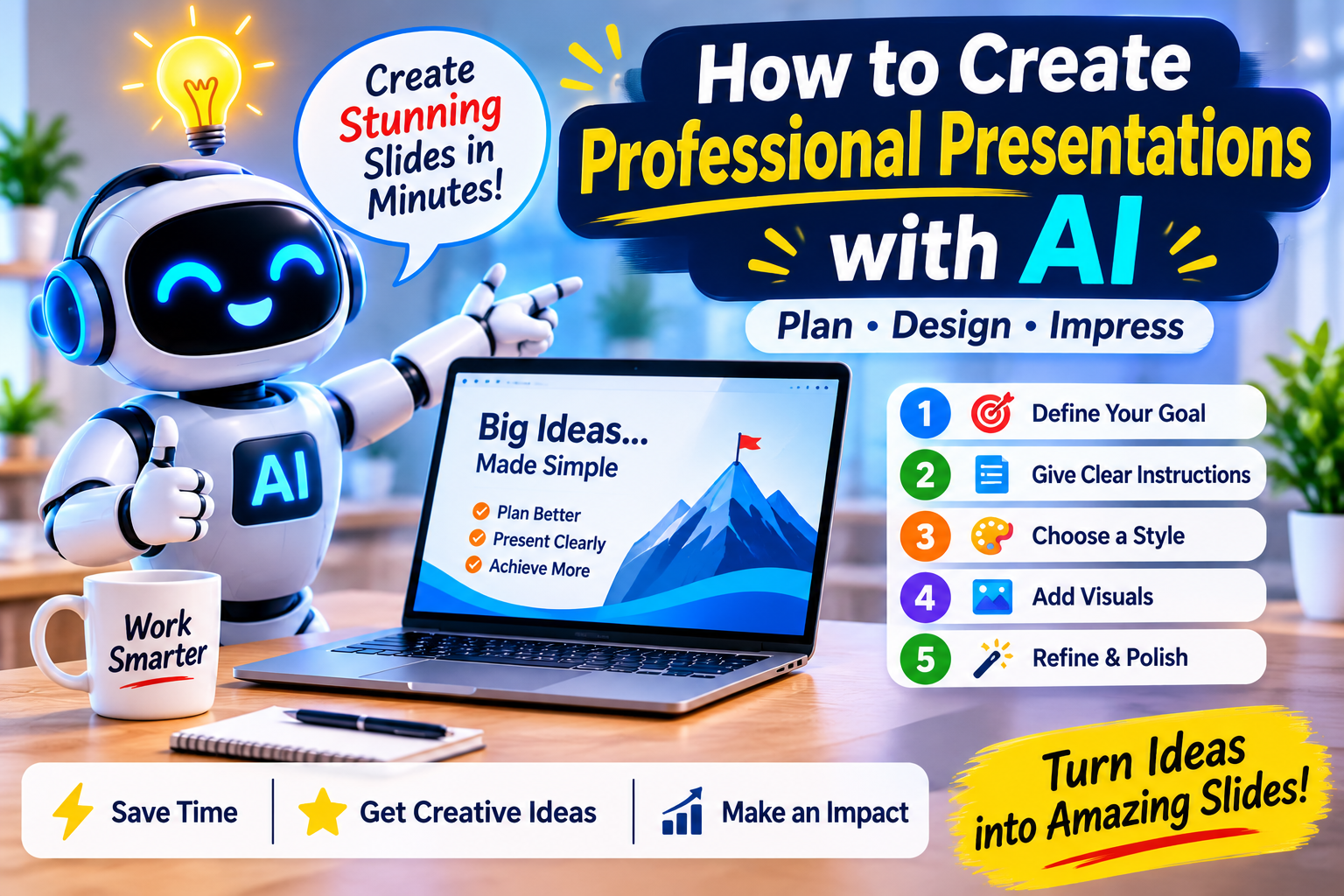
AI presentation creation means using artificial intelligence to help plan, write, design, or improve slides.
Instead of starting with a blank presentation, you can describe your topic and let an AI tool help you build the first version.
For example, you could enter:
“Create a 10-slide presentation about the future of renewable energy. Include an introduction, important facts, benefits, challenges, examples, and a conclusion. Use a modern and professional design.”
An AI presentation tool may use your instructions to suggest a slide structure, write content, and create a visual layout.
Depending on the tool, you may also be able to:
- Generate presentation outlines.
- Create slide titles and descriptions.
- Summarise long documents.
- Suggest images and illustrations.
- Design charts and diagrams.
- Improve existing slides.
- Convert ideas into presentation-ready content.
AI does not remove the need for creative thinking. It gives you a faster starting point.
2. Popular AI Tools for Creating Presentations
There are several tools that can help you create attractive slides. Each has a different approach.
A. Microsoft PowerPoint with Copilot
Microsoft PowerPoint is widely used for business, education, and professional presentations. Its AI features can help users create and improve presentation content.
What can it help with?
- Creating presentation drafts.
- Organising information into slides.
- Summarising content.
- Improving wording.
- Supporting presentation design and editing.
Best for: Business presentations, meetings, reports, and professional projects.
Website: https://www.microsoft.com/microsoft-365/powerpoint
B. Google Slides with Gemini
Google Slides is useful for creating and sharing presentations online. Gemini features in Google’s productivity tools can assist with writing and creative tasks, depending on the account and availability.
What can it help with?
- Developing presentation ideas.
- Writing and improving slide content.
- Summarising information.
- Supporting visual and content creation workflows.
Best for: Students, teachers, teams, and people who work with Google Workspace.
Website: https://slides.google.com/
C. Canva
Canva is a popular visual design platform with presentation templates and AI-powered design features.
What can it help with?
- Creating attractive slide layouts.
- Exploring presentation templates.
- Generating design ideas.
- Adding illustrations and visual elements.
- Creating presentations for different audiences.
Best for: Beginners, social media creators, small businesses, and visual storytellers.
Website: https://www.canva.com/presentations/
D. Gamma
Gamma is a presentation and content creation platform designed to help users turn ideas into visually organised content.
What can it help with?
- Creating presentation drafts from prompts.
- Organising information into sections.
- Exploring different layouts.
- Building visual presentations quickly.
Best for: People who want to turn written ideas into a polished first draft.
Website: https://gamma.app/
E. Beautiful.ai
Beautiful.ai focuses on presentation design and slide layouts. It helps users organise content into visually consistent slides.
What can it help with?
- Creating structured slide layouts.
- Maintaining design consistency.
- Presenting information visually.
- Building business and professional presentations.
Best for: Business professionals, teams, and people who want consistent-looking slides.
Website: https://www.beautiful.ai/
Note: Features, pricing, free access, and AI availability can change. Check each official website for the latest details.
3. Step-by-Step: How to Create a Presentation with AI
Creating a presentation becomes much easier when you follow a simple process.
Step 1: Decide Your Presentation Goal
Before opening an AI tool, understand why you need the presentation.
Ask yourself:
- What is the main topic?
- Who will see the presentation?
- What should the audience learn?
- How many slides do I need?
- What action or idea should people remember?
For example, a presentation for a school project will need a different style from a business proposal.
Step 2: Ask AI to Create an Outline
Do not immediately ask AI to create a complete presentation. Start by asking for a clear outline.
Example prompt:
“Create a 10-slide presentation outline about the importance of digital education. The audience is teachers and students. Include an introduction, key benefits, challenges, real-world examples, and a conclusion. Use simple English.”
Review the outline before moving to the next step. Make sure the order of the slides tells a clear story.
Step 3: Generate the Slide Content
Once you are happy with the outline, ask AI to develop the content.
Try this prompt:
“Write the content for each slide in my presentation about digital education. Use short headings, simple bullet points, and easy-to-understand explanations. Avoid long paragraphs. Include one practical example where useful.”
A good slide should communicate one main idea. Avoid filling every slide with too much text.
Step 4: Choose a Professional Design
Design plays an important role in how people understand your presentation.
Choose a style that matches your topic.
For example:
- Business topics: clean layouts and professional colours.
- Education: bright colours and simple diagrams.
- Technology: modern layouts and clear graphics.
- Finance: structured tables and easy-to-read charts.
- Creative topics: expressive visuals and attractive typography.
Use two or three main colours, readable fonts, and consistent heading styles.
Step 5: Add Suitable Images and Graphics
A presentation with relevant visuals can be more interesting than one filled with text.
You can use:
- Photographs.
- Icons.
- Charts.
- Diagrams.
- Illustrations.
- Maps and timelines.
Choose visuals that explain the subject instead of adding decoration without purpose.
For example, a presentation about climate change could include a simple temperature chart, a renewable energy illustration, and photographs of changing environments.
Always check image licences and usage permissions before using images in public or commercial presentations.
Step 6: Review Every Slide
AI-generated content is a starting point, not a finished product.
Check each slide for:
- Correct facts and figures.
- Clear explanations.
- Spelling and grammar.
- Consistent design.
- Suitable images.
- Repeated or unnecessary information.
If something looks crowded, simplify it.
Step 7: Practise Your Presentation
A professional presentation is not only about beautiful slides. It is also about how you explain your ideas.
Read through your slides, practise your introduction, and prepare answers to likely questions.
You can even ask AI to create speaker notes or suggest questions an audience might ask.
4. Ready-to-Use AI Prompts for Professional Presentations
Here are some practical prompts you can copy and customise.
Prompt 1: Business Presentation
“Act as a professional business presentation consultant. Create a 12-slide presentation about improving customer experience for a small business. Use a modern design direction, clear headings, short bullet points, practical examples, and a strong conclusion.”
Prompt 2: Educational Presentation
“Create a beginner-friendly presentation about the solar system for students. Include the planets, the Sun, interesting facts, and a short quiz. Use simple English and suggest suitable visuals for each slide.”
Prompt 3: Marketing Presentation
“Create a professional marketing presentation for a new skincare brand. Include the brand introduction, target audience, product benefits, marketing strategy, social media plan, and conclusion. Use a clean and attractive style.”
Prompt 4: Project Presentation
“Help me create a project presentation about [project topic]. Organise it into introduction, objectives, research, process, results, challenges, and conclusion. Keep the content clear and suitable for a professional audience.”
Prompt 5: Improve Existing Slides
“Review my presentation content and suggest improvements. Make the headings stronger, shorten long paragraphs, remove repeated points, and recommend suitable visuals. Keep the original meaning.”
5. What Makes a Presentation Look Professional?
You do not need complicated designs to impress your audience. Often, simple and consistent slides look more professional.
Here are some useful design principles.
Keep one main message per slide. Do not try to explain everything at once.
Use readable fonts. Make sure people can read your text from a distance.
Choose consistent colours. Use a small colour palette throughout the presentation.
Use meaningful images. Every image should support the topic.
Avoid unnecessary animation. Too many effects can distract your audience.
Use charts when they help. A clear chart can explain information faster than a long paragraph.
Leave enough empty space. Slides do not need to be filled from corner to corner.
6. Different Types of Presentations You Can Create with AI
AI presentation tools can support many kinds of projects.
- Business presentations: Company introductions, sales proposals, reports, and strategy plans.
- Educational presentations: Classroom lessons, assignments, training sessions, and study guides.
- Marketing presentations: Campaign plans, product launches, and brand introductions.
- Research presentations: Findings, comparisons, survey results, and project summaries.
- Personal presentations: Travel plans, portfolios, event proposals, and creative projects.
The best part is that you can adapt your instructions to suit almost any subject.
7. Common Mistakes to Avoid When Using AI
AI can make presentation creation faster, but using it without checking the results can create problems.
Avoid these common mistakes:
Copying everything without reviewing: AI may produce incorrect or unnecessary information.
Using too much text: A slide is not a document. Keep the main points short.
Choosing random images: Make sure visuals match the message.
Ignoring the audience: A presentation for beginners should not be filled with complex technical language.
Using inconsistent designs: Different fonts and colours on every slide can make the presentation look unprofessional.
Trusting every statistic: Verify important numbers and claims using reliable sources.
Forgetting your own voice: Add your experience, examples, and ideas to make the presentation more meaningful.
8. Advantages and Limitations of AI Presentations
Advantages
- Saves time during planning and drafting.
- Helps generate fresh ideas.
- Makes it easier to organise information.
- Offers design inspiration.
- Supports people with limited design experience.
- Helps create different types of presentations.
Limitations
- Generated information may contain mistakes.
- Designs may need manual adjustments.
- Some tools have usage limits or paid features.
- AI may not understand every detail of your project.
- Original thinking and presentation skills are still important.
The smartest approach is to combine AI assistance with human creativity.
9. A Simple Workflow for Better Results
If you want to create a professional presentation without wasting time, follow this workflow:
- Decide the topic and audience.
- Ask AI to create an outline.
- Review and improve the outline.
- Generate short slide content.
- Choose a suitable presentation design.
- Add relevant images, charts, and icons.
- Verify facts and figures.
- Practise and make final adjustments.
This approach helps you stay organised and gives you more control over the final result.
Final Thoughts: Let AI Help You Present Your Ideas Better
Creating professional presentations no longer has to feel like a difficult task. AI tools can help you plan your content, organise your ideas, suggest designs, and build your first slide draft.
Tools such as PowerPoint, Google Slides, Canva, Gamma, and Beautiful.ai offer different ways to make the process easier.
However, remember that a beautiful presentation is not always a successful presentation. The most important thing is the message you share and how clearly your audience understands it.
Use AI to save time, but add your own ideas, knowledge, and creativity to make every presentation meaningful.
Your ideas deserve great slides. Start with a clear message, use AI wisely, and present with confidence.
Frequently Asked Questions
1. Can AI create a complete presentation?
Yes. Some AI tools can generate a presentation draft from a topic or prompt. You should still review and edit the slides before using them.
2. Which AI tool is best for presentations?
It depends on your needs. Canva is useful for visual design, Gamma for creating structured drafts, and PowerPoint for familiar professional presentation workflows. Compare their current features before choosing.
3. Can beginners create presentations using AI?
Absolutely. Many tools offer templates and simple interfaces that help beginners get started without advanced design skills.
4. Can AI add images to presentations?
Some tools can suggest, generate, or insert visuals. You can also add your own images and illustrations.
5. Are AI-generated presentations free?
Some platforms offer free plans or limited features, while others require payment for certain capabilities. Check their official pricing pages.
6. Should I use AI-generated content without checking it?
No. Always review important information, verify facts, and make sure the presentation suits your audience.
Disclaimer: AI tools and their features change over time. Check official websites for current availability, pricing, and usage conditions.
About the Author